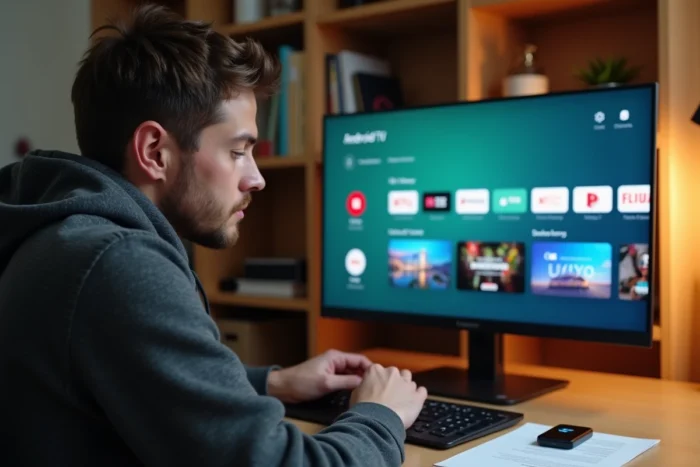
Transforming a PC into a multimedia center running Android TV sounds appealing on paper. However, between uncertified community builds, the lack of an official Play Store, and the competition from dedicated boxes costing less than a hundred euros, the question deserves to be asked differently: which installation method offers the best stability/features ratio for a beginner in 2026?
Google Certification and Limitations of Android TV Builds on PC
The first technical obstacle often goes unnoticed. Android TV builds for PC do not have Google certification. This means that the Android TV version of the Play Store is not natively available, and some streaming applications (Netflix, Disney+, myCanal) refuse to work or are limited to degraded quality.
Community projects that offered ready-to-burn ISO images of Android TV have become scarce in recent years. Most have migrated to general-purpose Android x86 versions or Google TV-inspired interfaces, without providing the same software integration.
For those who still wish to try the experience, a detailed guide allows you to install Android TV on PC easily by following a step-by-step process tailored for beginners.
This lack of certification also impacts security updates and access to voice assistant features. A non-certified Android TV PC generally does not benefit from Gemini integration (the AI that is gradually replacing Google Assistant on recent Google TV devices), which significantly alters the experience for a user expecting to find the same functions as on an official box.
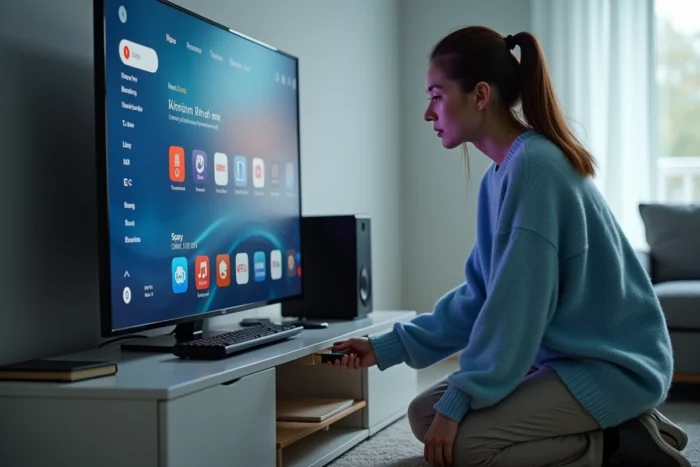
Dedicated Android TV Box or Installation on PC: Comparison Table
Before diving into an installation, it is useful to measure what each approach concretely brings.
| Criterion | Android TV on PC (x86 build) | Dedicated Box (Google TV Streamer, Xiaomi Mi Box S, etc.) |
|---|---|---|
| Google Certification / Play Store TV | Absent | Present |
| Streaming Apps (Netflix, Disney+, myCanal) | Partial or impossible operation | Native operation, HD/4K quality |
| System Updates | Manual, dependent on community project | Automatic via Google |
| Voice Assistant / Gemini AI | Not available | Integrated (on recent models) |
| Cloud Gaming (GeForce Now, Xbox Cloud) | Possible via browser or sideloaded APK | Dedicated apps available on certain models |
| Home Automation (Matter/Thread) | Not supported | Integrated hub (Google TV Streamer) |
| Cost | Free (if PC exists) | Variable depending on the model |
The only clear advantage of the PC remains its zero cost if the machine already exists. On all other criteria, certified boxes prevail. Google has officially replaced the Chromecast with the Google TV Streamer 4K, which features 32 GB of storage, a Matter/Thread home automation hub, and a voice remote control.
Technical Prerequisites for Installing Android TV on an Existing PC
If despite these limitations, installing on PC remains your choice (recycling an old laptop, using it as a media center without DRM-protected streaming), here’s what you need to prepare.
- A PC with a 64-bit x86 processor, at least two cores, and a few gigabytes of RAM. Machines less than ten years old generally suffice.
- A USB stick of at least 8 GB to burn the ISO image using a tool like Rufus or Etcher.
- A hard drive or SSD with two partitions: one in FAT32 for booting, and one in EXT4 for the Android system. Partitioning can be done from the installer or beforehand with GParted.
- Access to the BIOS/UEFI to modify the boot order and disable Secure Boot if necessary.
The installation process resembles that of a Linux distribution: you boot from the USB stick, choose between a live mode (test without installation) and a permanent installation on the disk, then follow the network configuration and Google account setup steps.
Disk Partitioning: The Step That Blocks Most Beginners
Partitioning in FAT32 + EXT4 is the main source of errors. Incorrect formatting prevents the bootloader from finding the system. If the PC already has a Windows system that you wish to keep, you must create the Android partitions on unallocated space without touching the existing Windows partition.
In dual boot, the GRUB boot manager installs automatically and offers the choice between Windows and Android TV at startup. This configuration works, but each Windows update risks overwriting GRUB, requiring manual reinstallation.
Software Alternatives: Android TV Emulators and Casting from a Browser
For a beginner who simply wants to display Android TV content on a PC screen without reformatting anything, two options deserve attention.
The first is to use a classic Android emulator (like Genymotion or the Android Studio SDK) configured with an Android TV profile. Emulation works in a Windows window without touching the system, but graphical performance lags behind, especially for gaming or high-definition video streaming.
The second option involves casting. Solutions like Sunshine (on the host PC) paired with Moonlight (on a client) allow you to turn a gaming PC into a local streaming server. This is not technically “Android TV on PC,” but the visual result is similar for media center use.
Which User Profile Really Benefits from Installing Android TV on PC
The native installation of Android TV on PC is justified in one specific case: recycling an old PC into a local media center without spending a dime. For playing locally stored video files via Kodi or VLC, Android x86 with a TV interface works well.
For any use involving DRM-protected streaming, cloud gaming, home automation, or a voice assistant, a certified box like the Google TV Streamer or the Nvidia Shield TV Pro remains the most reliable solution. Recent guides and comparisons position these two devices as the benchmarks for transforming any screen into a complete smart TV.
The choice boils down to a simple variable: if the PC is already there and the use remains local, the installation makes sense. For everything else, the dedicated box saves hours of configuration for a more stable result.